
Blog
Dola app download for Windows and Linux
How to download the Dola AI desktop app for Windows or Linux, install it, sign in, and connect the Unreal Engine 5.7 plugin to your project.
Last updated 6 October 2026
Published 6 October 2026
Which Dola this guide is for
Update, 12 October 2026: the Unreal plugin now runs on Linux as well as Windows. It needs Epic’s own Unreal Engine 5.7 (the Epic Games Launcher install on Windows, Epic’s Linux download on Linux), not a self-built engine. There is no macOS build.
This guide installs Dola AI, the AI assistant for Unreal Engine developers at dolaai.pro: the Dola desktop app for Windows and Linux plus an Unreal Editor plugin for Blueprints and C++. If you were looking for a different app called Dola, that is an unrelated product, and nothing below applies to it. More on the name clash in What is Dola AI?.
The short version of the install: create an account, download the installer for your operating system from your account’s Releases page, sign in inside the app, then attach your Unreal project and install the Dola plugin. Each step is below.
Before you download
Check these first so the install does not stall halfway:
- An account with access. Downloads sit behind a signed-in Dola AI account. Sign-up is free and access is immediate while launch spots are open; when they are full, new accounts wait briefly for a spot.
- A desktop computer. The app ships for Windows and Linux.
- Unreal Engine 5.7 for the plugin. Published Dola plugin builds target UE 5.7 on Windows (Win64) and Linux. Published plugin builds cover only Windows and Linux editors. Modeling mode, the in-app Babylon studio, does not need Unreal at all.
- A connection to dolaai.pro. Your chats and project indexes stay on disk, but sign-in goes through dolaai.pro. Agent runs also go through dolaai.pro and use plan credits. See plans and credits.
Step 1: Create your Dola AI account
Go to dolaai.pro/signup. Sign up with your name, email, and a password of at least eight characters, or use Join with Google. Email sign-ups get a verification email; verify it, then sign in to see your place in the queue on the dashboard.
New accounts get in straight away unless launch spots are full, and anyone who already joined can sign in. Problems with this step are covered in the Dola login guide.
Step 2: Download from your Releases page
Once your account has access, sign in on dolaai.pro and open Releases from the dashboard menu. The page lists the latest version for each platform:
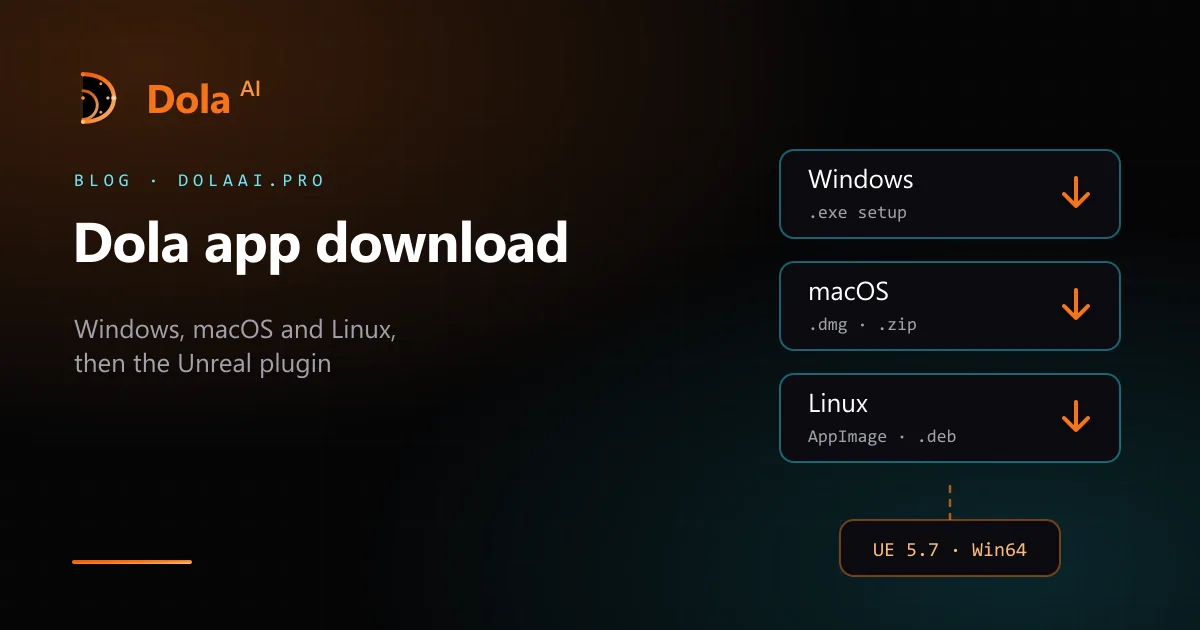
- Windows — a setup installer (dola-<version>-setup.exe).
- Linux — an AppImage and a .deb package.
That page is the only source of Dola AI installers. We do not publish a public direct link that skips sign-in, and we do not put builds on third-party download or “APK” sites. If a site other than dolaai.pro offers you a Dola AI installer, do not run it.
Step 3: Install the desktop app
Windows. Run the setup file. It is a short wizard rather than a one-click installer: it installs for your user by default (choosing all users asks for administrator rights), lets you pick the folder, adds Start menu and desktop shortcuts, and offers to launch Dola at the end. To upgrade, run a newer installer over the existing one. Uninstalling leaves your chats, settings, and local indexes on disk.
Linux. For the AppImage, make it executable and run it: chmod +x dola-*.AppImage, then ./dola-*.AppImage. On Debian or Ubuntu you can install the package instead with sudo apt install ./dola_*.deb.
Step 4: Sign in inside the app
Open the app’s account page and choose Continue in browser. Dola opens dolaai.pro in your default browser; sign in there (or confirm, if you are already signed in) and the browser hands you back to the app. You can also use Email log in inside the app. It is the same account as the website. Sign-in uses a short-lived browser hand-off, not a pasted API key.
Step 5: Connect your Unreal project and plugin
Dola never uploads or hosts your .uproject. You attach the project that is already on your disk, and tools run against that open project.
- On the desktop projects list, attach your Unreal project.
- Choose Install Dola plugin. The app writes the plugin into Dola’s local plugin folder and registers that folder with your project.
- Restart or reopen Unreal Editor after the first install so the local bridge between the editor and the app can handshake. You should not need to paste console commands.
Then try a small, checkable request: the first Blueprint workflow or first C++ edit. How the chat and its agents split that work is in Dola AI assistant: chat and agents. Reference pages: install and prerequisites, connect an Unreal project, and the Unreal plugin.
If the install goes wrong
- No download on the Releases page. If the dashboard still shows your waitlist position, your account does not have access yet.
- The editor will not connect. Check that the project is attached, the plugin is installed for that project, and Unreal Editor 5.7 has been reopened. Errors such as plugin_absent, handshake_timeout, or wrong_project usually mean re-running Install Dola plugin.
- Chat replies fail. A 401- or 402-style error usually points at your session or credit allotment, not at the Unreal install.
More fixes are in troubleshooting.