
Blog
Dola AI assistant: chat and agents for Unreal
How Dola’s chat and specialist agents work in Unreal Engine: one chat, with Blueprint, C++, and material specialists that edit your open project.
Last updated 6 October 2026
Published 6 October 2026
A chat that acts on your project
Dola AI’s chat is not a general chatbot sitting next to Unreal. It is the front door to a set of agents that work on the project you have open: the Dola plugin runs inside Unreal Editor, a local bridge connects it to the Dola desktop app, and agents use that bridge to read and change real assets. This post explains what happens between your message and the change in your editor, which specialist handles what, and how to phrase requests so they land.
New to Dola? Read What is Dola AI? first, then install the app.
Before you start a chat
- Stay in game-dev mode. The title-bar toggle (Ctrl+Shift+M) switches between game-dev and Modeling, and threads remember which mode they started in.
- Attach your project and run Install Dola plugin from the desktop projects list. Published plugin builds target Unreal Engine 5.7 on Windows and Linux.
- Open Unreal Editor (reopen it after a first install) so the bridge can handshake. See connect an Unreal project.
- Commit your project to source control before large requests, so every change is easy to review or roll back.
What happens when you send a message
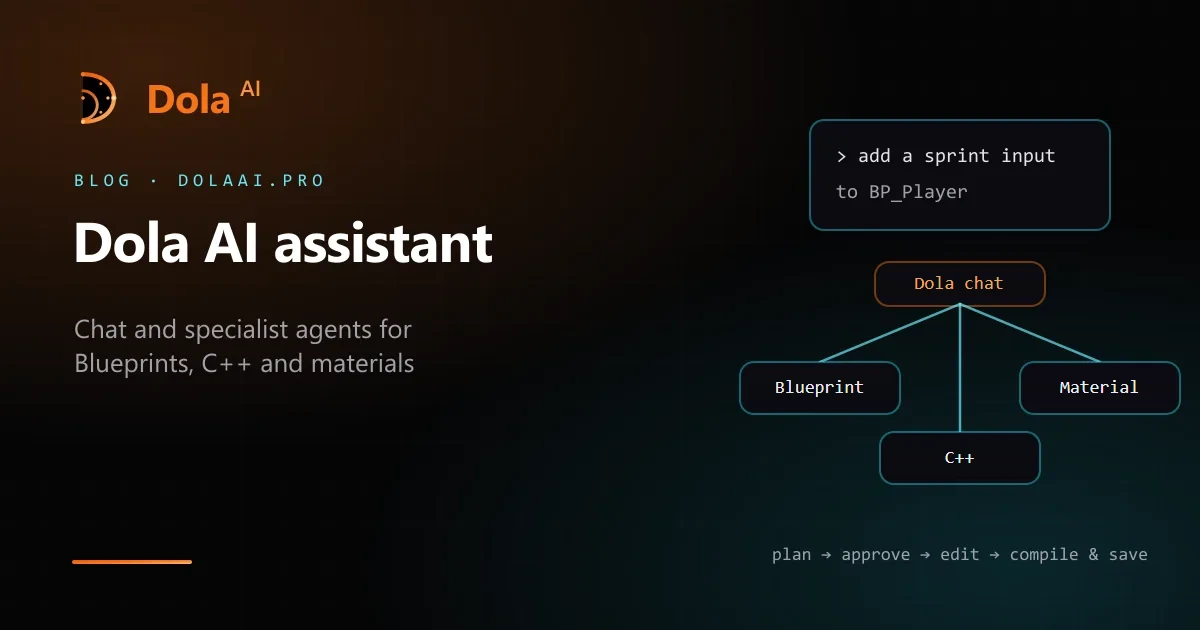
- You write one message in one chat. Dola brings in the specialist for each part of the request, so you never have to pick one.
- Small, contained tasks go straight to that specialist. Game-sized requests become a plan with tasks; ask for just the plan and nothing changes until you approve it.
- The specialist uses its own tools (the live editor bridge for Blueprints and assets, file edits for C++, the local project index for search) and reports back.
- For graph work, the Blueprint specialist compiles and saves before it claims the task is done.
Dola should not ask you to create a level for it or to paste editor console commands; if a step needs the editor, a specialist does it through the bridge.
The specialists you will meet
- Blueprint — Blueprint graphs under Content: nodes, pins, then compile and save.
- C++ — Project source, including Source/*.h and Source/*.cpp with Unreal reflection macros.
- Material — Unreal materials (M_*) and material instances (MI_*).
- Level — Maps, actors, and layout. It does not invent level names.
- Widget — UMG Widget Blueprints (WBP_*).
- Animation, Niagara, audio, Sequencer, and gameplay AI — AnimBlueprints and montages, Niagara systems, sounds and MetaSounds, Level Sequences, and behavior trees with their blackboards and AI controllers.
- Asset — Finding, creating, and tidying files under Content.
- Editor — Opening, restarting, and closing Unreal Editor on your project.
Some help never changes your project: researching the web and docs with sources, recalling what the project index knows, and looking over proposed changes. The full list is the agent roster.
Blueprints in practice
The Blueprint specialist works on graphs that already exist under Content. It lists asset paths, edits the graph through the bridge, then compiles and saves. Name the Blueprint and describe one change you can check, for example:
In BP_Door, open the door over one second when the player overlaps the trigger box, then compile and save.
Then look at the graph in the editor and press Play. If something is off, say what you saw rather than starting over. Keep each request to one Blueprint or one behavior; a long wish list is better as a plan you approve step by step. The walkthrough is in first Blueprint workflow.
C++ in practice
The C++ specialist reads, searches, and edits headers and .cpp files under Source/, using Unreal conventions such as UCLASS, UPROPERTY, and UFUNCTION. Engine API lookup lets it check class and function names instead of guessing. A request might read:
Add an editable MaxStamina float to AMyCharacter and a BlueprintCallable function that drains it.
Dola does not compile the editor for you. Build as you normally do, and if the compile fails, paste the error back into the same thread. The C++ specialist does not touch Blueprint, UMG, or Niagara graphs; that work belongs to the graph specialists. More in first C++ assistance.
Materials in practice
The material specialist works with Unreal materials and material instances: the M_* and MI_* assets in your Content folder. Point it at an asset by name and say what should change, such as a parameter value on a specific instance. Keep material requests separate from Blueprint requests so each specialist gets a clear job.
Modeling mode is different: there, colour and PBR materials on the model are handled in the desktop app’s modeling studio, and the model reaches Unreal only when you send it there. See Modeling mode is a Babylon studio.
Writing requests that work
- Name things. Use asset names and paths, class names, and level names that exist. Agents are told not to invent them.
- Say what done looks like. “The door opens when I walk into the box” is easier to verify than “improve the door”.
- One change at a time for small edits; ask for a plan for anything game-sized and approve it before work starts.
- Check in the editor. Look at the graph, play in editor, build the C++. Feed what you saw back into the thread.
Where your chats go
Chat history and project indexes are designed to stay on your computer. Agent runs go through dolaai.pro to the Dola backend, which runs Claude, and usage is counted against the credits in your monthly plan. Details: models, pricing, local vs hosted and the privacy policy.